The full InventoryOS tour
Follow a sample business from adding its first product to selling, dispatching and restocking.
Read the walkthrough
- How InventoryOS works A guided tour of the workspace.
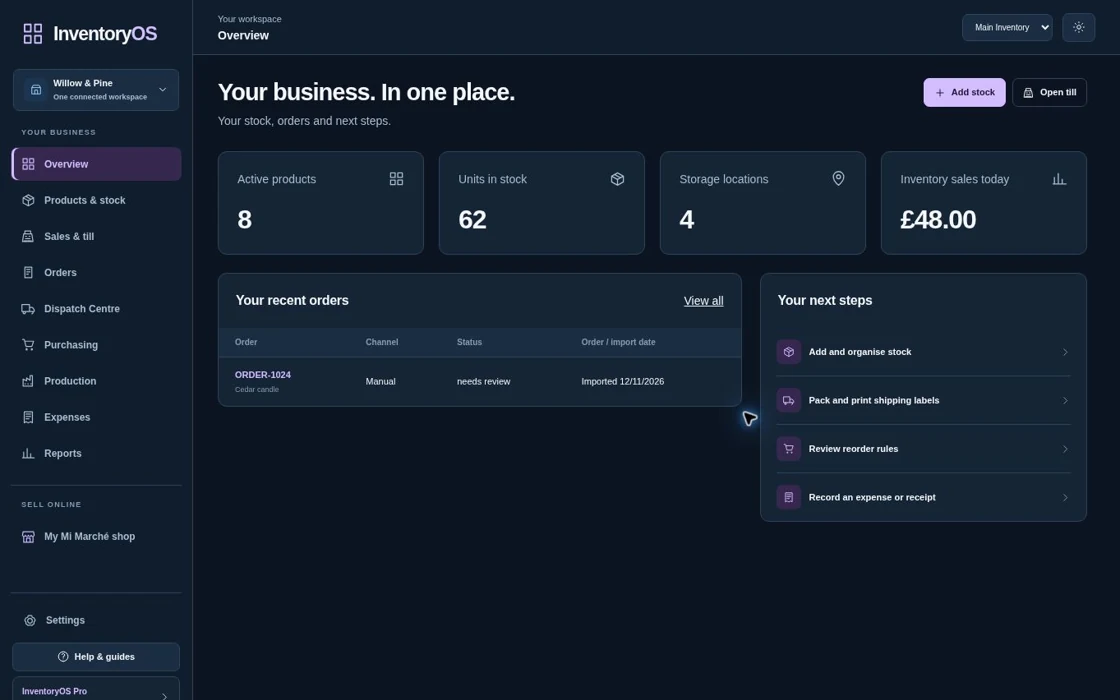
- The big picture Active products, units in stock, locations and today’s sales on one screen.
- Your next steps Quick links to add stock, pack labels, review reorder rules and record expenses.
- Learn as you go A guided practice checklist teaches you to add, move and sell stock.
- Ready to add stock?
- Receive items into the right location Fill in the product, quantity and storage location.
- Find it fast Search by name, barcode or SKU.
- Move stock Transfer units between storage locations.
- Remove stock Record a sale made elsewhere and enter the sale amount.
- Storage boxes Organise stock into labelled containers.
- Barcode labels Print scannable labels for every item.
- Time to dispatch
- Dispatch Centre Import label files, or forward label emails to your workspace address.
- Auto-crop to 4 × 6 Turn on cropping for supported label layouts.
- Check the preview Make sure the crop looks right before you print.
- Add the cropped label
- It joins your packing queue Review pending print batches before you pack.
- The till Scan or search a product, add it to the sale.
- Record a card sale Take the payment on your card reader.
- A receipt, instantly Print or save a clean receipt as soon as the sale is complete.
- Refunds Find a completed sale and refund it.
- Sales tracker Record sale prices and see how you’re doing.
- Receipts and expenses Drop in invoices, review them, and keep costs next to your stock.
- Reorder rules Set a minimum and a reorder-to level for each product.
- Purchasing Orders waiting on delivery, grouped in one place.
- Stock arrived?
- Receiving updates stock See the newly received stock in your movement history.
- Stale stock Spot items that haven’t moved in a while.
- Your team Give people access with roles that fit.
- Making your own products?
- Materials and packaging Track what you have and what’s ready to use.
- Recipes Set what goes into each finished item once.
- Production batches Complete a batch and the finished stock is added for you.
- Running a shop? See tills, orders and store performance in one view.
- Set up a Mi Marché storefront Choose stock to show on your shop.
- Ready to try it? Start free. 100 items. £0.